How to Use the Analysis View
The Analysis View opens automatically after a recording or replay. It provides you with powerful tools to break down technique, highlight key details, and offer feedback to your swimmers.
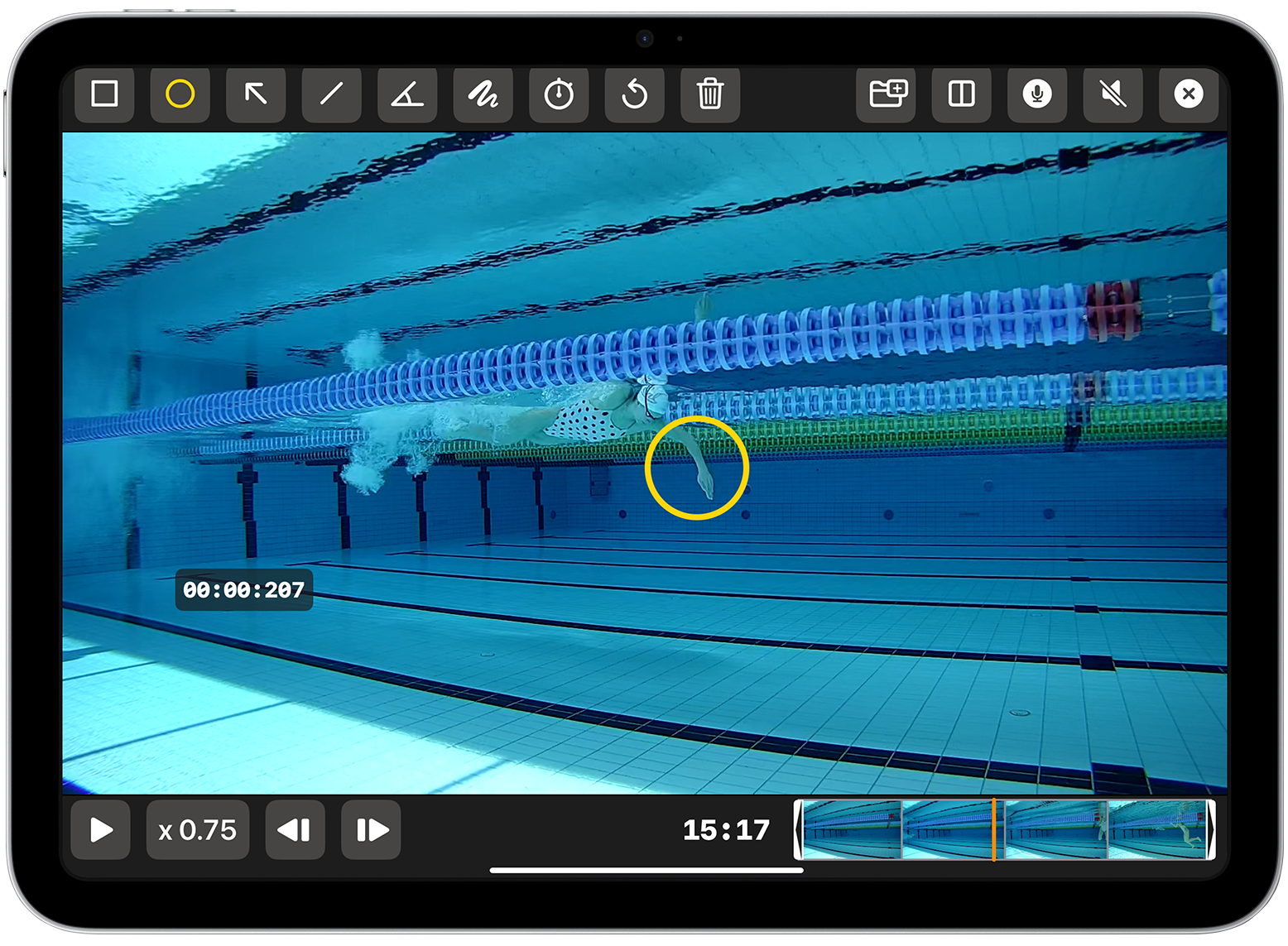
What You Can Do in the Analysis View
In this view, you can interact with the video using tools built for slow-motion feedback and coaching:
- Split-screen comparison – Tap the split-screen icon (next to the microphone) to view two videos side-by-side.
- Slow motion – Play the video back at reduced speed to see movements clearly.
- Frame-by-frame scrubbing – Move through the video one frame at a time for precise review.
- Pause – Stop the video at any exact moment.
- Drawing tools – Draw directly on the video to highlight motion paths, body angles, or positions.
- Circles and markers – Tap to add shapes that call attention to hand entry, head position, etc.
- Angle measurement – Use the angle tool to check technique and posture.
- Timer – Measure a stroke cycle, breakout, or turn segment.
Video trimming – Use the chevrons on the scrub bar to set custom start and end points